
Floating Toolbar
The floating toolbar sits at the bottom of the editor preview. It controls how you view and interact with your paywall or flow. Your selected view mode is remembered across sessions.
View modes
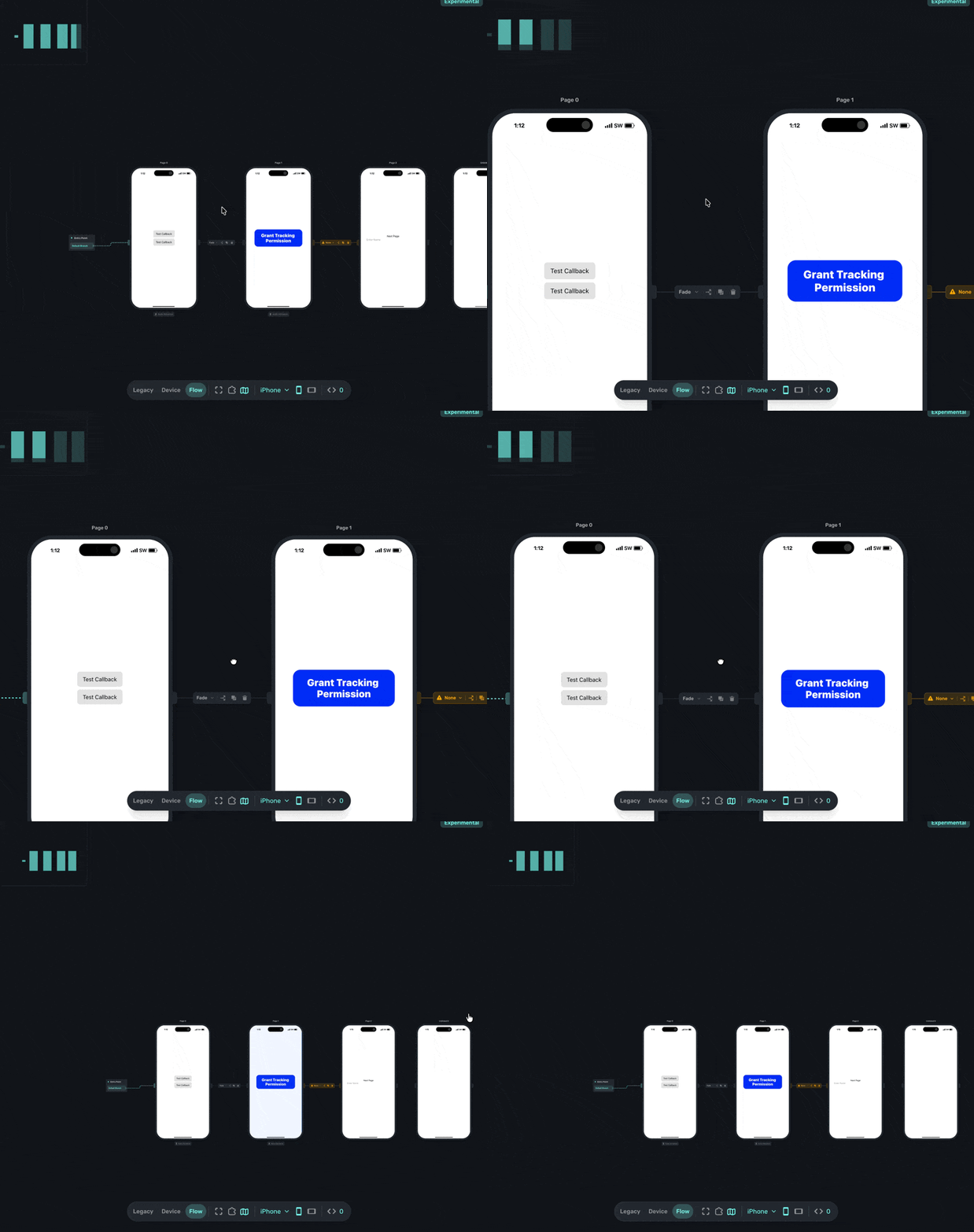
The left side of the toolbar has a three-way switcher: Legacy, Device, and Flow.
Device focuses on a single page at a time. It zooms in on the selected page so you can interact with it like a real device. Tap buttons, test navigation, trigger actions, and see how things behave. If you are testing a paywall or stepping through a flow page by page, Device is the right mode.

Flow expands out and shows all of your pages at once, laid out with their connections visible. This is where you build and edit the structure of a flow: add pages, draw routes, set up branches, and rearrange the layout. If you are creating or editing a flow, this is the mode to work in.

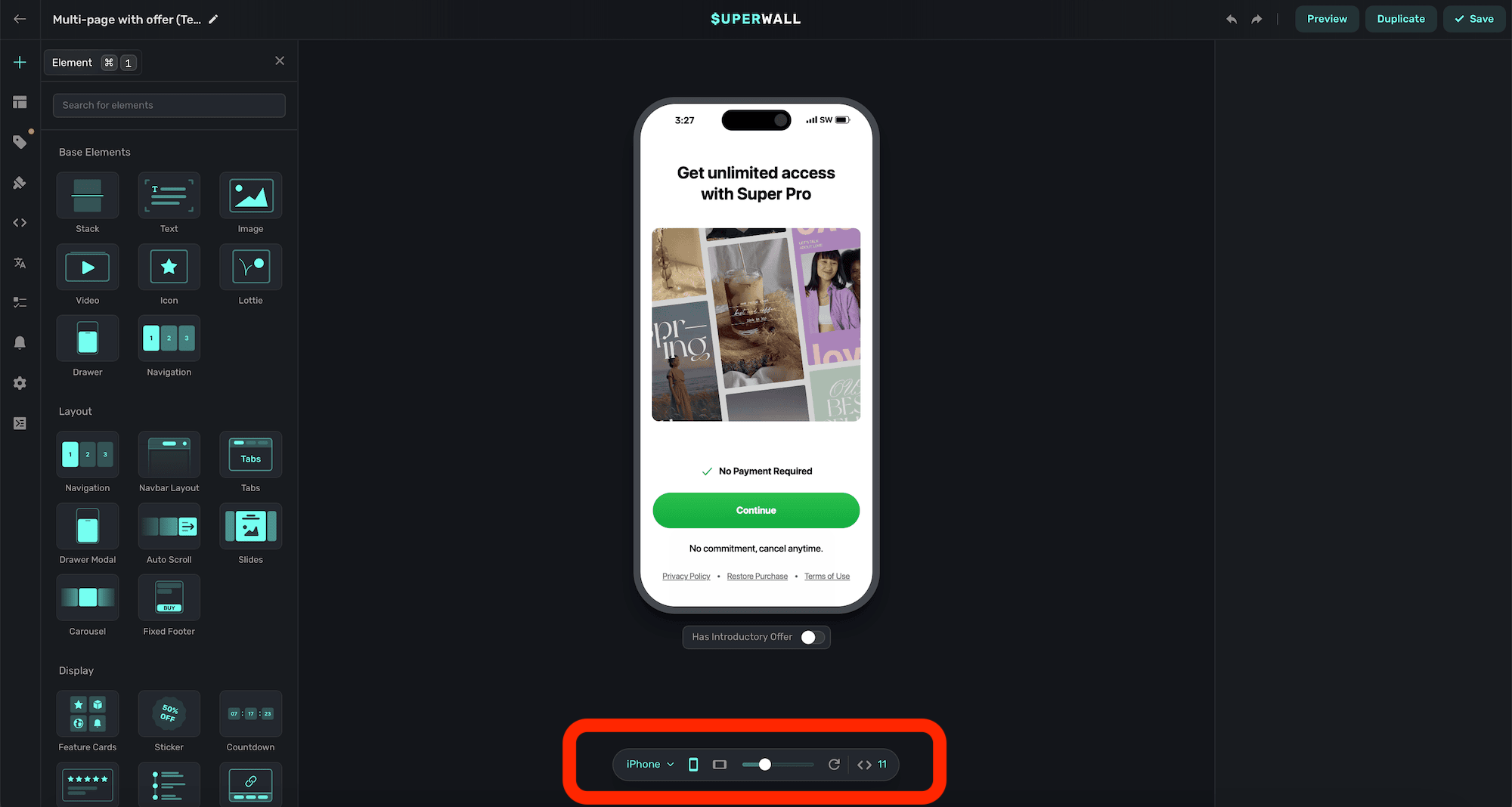
Legacy is the original editor toolbar with zoom controls, a refresh button, and basic preview options. If you are working on an older paywall, this is the view you are used to.
A good mental model: Device is for testing, Flow is for building. You can switch between them at any time.
Toolbar controls
Most controls are shared across Device and Flow modes. From left to right:
- View mode switcher: Legacy, Device, or Flow.
- Center canvas: Resets the canvas position so everything is centered in the viewport.
- Auto-layout branches (Flow mode only): Snaps all pages into a clean, centered layout. Useful when you have been dragging pages around while building a flow and want to tidy things up.
- Toggle minimap: Shows or hides a thumbnail overview. In Flow mode, the minimap is especially helpful for navigating larger flows. You can click and drag within it to jump to a specific area.
- Device selector: Switch between iPhone, iPhone SE, iPhone XL, iPad, and Desktop previews.
- Orientation: Toggle between portrait and landscape.
- Variables: Open the variable editor to view or edit variables used across your paywall. You can filter by variables in use, or show all of them.
Zooming
Zooming works differently depending on the view mode.
In Legacy mode, use the zoom slider in the toolbar to adjust the preview scale:

In Device and Flow modes, pinch and zoom with your trackpad or mouse to zoom in and out of the canvas.
How is this guide?