
Tips
Practical advice for building effective flows.
Flows is currently in beta.
Want to watch some of these tips in action? Check out this video:
Setting custom user attributes
Setting custom user attributes inside a flow is one of the most useful techniques available. Any tap behavior can set a user attribute, which means buttons, multiple choice selections, and other interactive elements can all tag users with data as they move through the flow.
Once a user attribute is set, you can use it in a few different ways:
- Within the same flow. Personalize a later screen with the value (e.g., "Awesome John, welcome to the app!"), route to a different page via branching, or change which products and offers to show.
- In your app. Use the SuperwallDelegate to send it straight to your analytics provider, create user cohorts, or handle it however you need.
For example, a "Next" button can do more than navigate to the next page. It could, for example, also read from a multiple choice selection, and set its selection to a custom user attribute. By using the tap behavior of "Set Attribute", the value will be set to the user:

In addition, your app can handle the attribute using the delegate:
extension MySuperwallDelegate: SuperwallDelegate {
    func userAttributesDidChange(newAttributes: [String : Any]) {
        // The attribute set in the flow is sent here
    }
}
This works for any data you collect in a flow, not just multiple choice. Text input values, quiz responses, demographic selections, and preferences can all be stored as attributes and forwarded to your analytics, CRM, or backend.
After purchase behavior
By default, when a user makes a purchase, the paywall or flow will close. But in Flows, you might want to continue. For example, you could show a thank-you message or collect feedback.
To set something like this up:
- Select the purchase action on your button.
- Look for the After Purchase setting.
- Choose from the available options:
- Close: Dismisses the flow (the default).
- Navigate Page: Advances to the next page in the flow. This is the most common choice for flows where the purchase happens mid-journey.
- Open URL: Opens a link after purchase.
- Custom Action: Triggers a custom action in your app.
- Custom Placement: Registers a placement after purchase.
- Set Attribute: Sets a user attribute when the purchase completes.
- Set State: Updates a state variable.
- None: Does nothing, letting the flow proceed naturally.
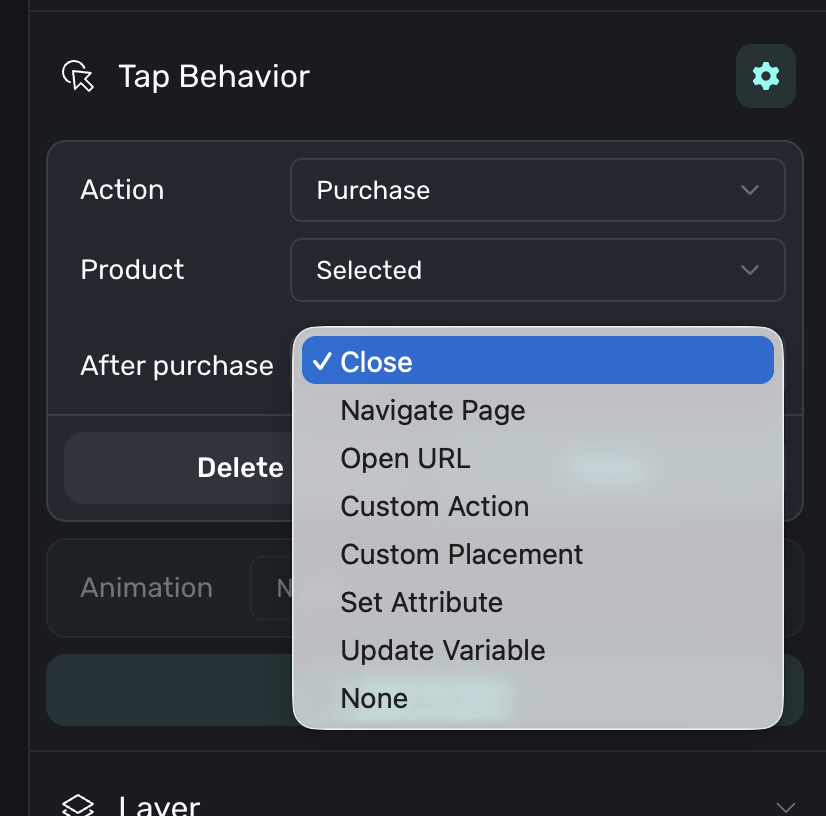
The Navigate Page option is particularly useful in flows. Instead of closing after purchase, the user moves to the next connected page. This opens up use cases like:
- Showing a personalized welcome or thank-you message.
- Collecting feedback about why they subscribed.
- Presenting an upsell for an add-on product.
- Guiding users through initial setup.
- Placing a paywall in the middle of a flow and continuing the journey after conversion.
Simulate permission prompts
Using the permissions tap behavior, you can test Flows without having to run it on device. The canvas view will allow you to mock either response when you interact with a component with the permission behavior:

Use indicators for longer flows
If your flow has more than 3-4 pages, add an Indicator element. Users are more likely to complete a flow when they can see:
- How far they've come.
- How much is left.
Progress visibility reduces abandonment, especially in onboarding flows where users might otherwise wonder "how much longer is this?"
Keep flows focused
Flows work best when they have a clear, single purpose:
- Onboarding: Gathering preferences and introducing the app.
- Cancellation: Understanding why users are leaving and offering alternatives.
- Upsell: Guiding users to a higher tier or add-on.
If a flow is getting too long or trying to do too many things, consider splitting it into multiple flows. A focused 5-page flow is better than a sprawling 15-page one. When building a new flow, build linear first so all your pages are created and connected in a straight line, then test the basics to make sure navigation works and content looks right, and finally add branching once the foundation is solid. It's much easier to debug a simple flow than a complex one, so get the basics working before adding sophistication.
How is this guide?