
Permission Prompts
Request system permissions like notifications, location, and camera at the right moment in your flows.
Flows is currently in beta.
Requesting permissions is a natural part of many flows, especially onboarding. Rather than prompting for notifications or location access at a random moment, you can ask at the right point in a flow after the user understands the value.
Permission prompts are not a standalone element. They are a tap behavior called Request Permission that you attach to a button or other tappable component. When the user taps it, the system permission dialog appears.

Available permissions
- Notification: Ask for permission to send system notifications.
- Background Location: Request location access when the app isn't in use.
- Location: Request location access while the app is in use.
- Read Images: Access the user's photo library/camera roll.
- Contacts: Access the user's contacts.
- Camera: Access the device camera.
- App Tracking Transparency: Ask to track the user across apps and websites.
- Microphone: Access the device microphone.
Permission prompts require iOS SDK 4.12.5+.
If Granted / If Denied
You can add follow-up actions that run depending on the user's response. Use the If Granted section to add actions that run when the user allows the permission, and If Denied for when they decline. For example, you could navigate to the next page on grant, or show a different page explaining why the permission matters on deny.
Testing permissions in the editor
You can test permission prompts directly in the editor preview without deploying to a device. When a permission request fires, the editor shows a simulation toast with Grant and Deny buttons. Clicking either one triggers the corresponding If Granted or If Denied follow-up actions, so you can verify your entire permission flow works before shipping.

Testing callbacks in the editor
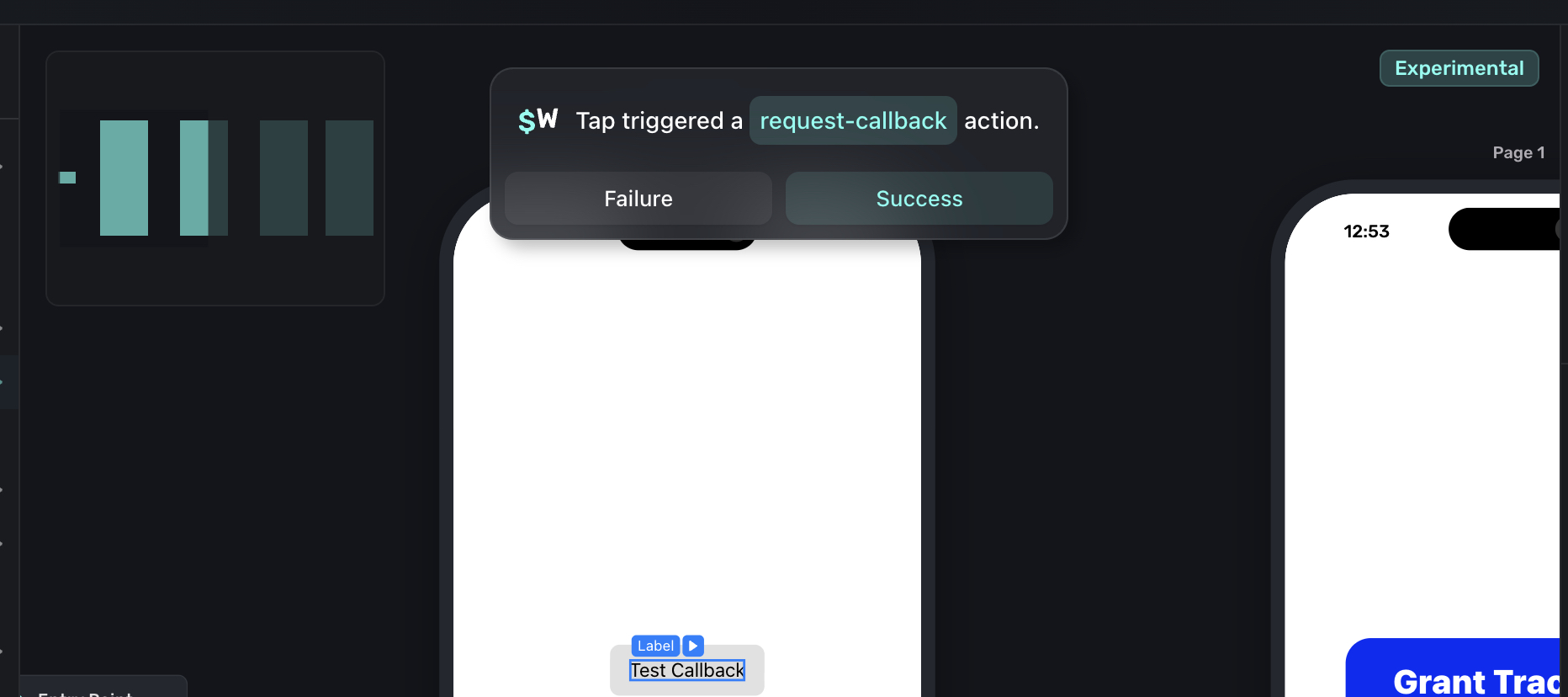
Custom Callback actions can also be tested in the editor. When a callback fires, the editor shows a simulation toast with Success and Failure buttons. If the callback is configured as Blocking, the action chain pauses until you click one. If it's Non-blocking, the chain continues immediately and you can click whenever you're ready. This lets you test both paths of your callback logic without writing any SDK code.
Best practices
- Request permissions after providing value. Users are more likely to accept.
- Explain the benefit clearly (e.g., "Get notified about exclusive deals").
- Consider placing permission prompts after a purchase or key engagement moment.
For more guidance on iOS, view Apple's Human Interface Guidelines here.
How is this guide?